


Okay, so your here and ready to try Gamably but want some tips on getting started. Well, you found the right place! Below is a step by step guide to launching your journey into Gamably, and a more engaged, more enjoyable, classroom!
For more specific guidelines or details for using Gamably you can use these specific blog post guides:
How To Use Gamably: Sign-Up or Sign-In

First you’ll need navigate to app.gamably.com by typing it into your url or following one of the links provided. Then you need to create an account for yourself using a valid email address or using the Google SSO. Afterwards, you will need to create your profile and enter your birthdate. If you are under 18, you will access a different version of the app so please ensure your age is accurate! Select an Icon or use a gradient to represent you.
Then you will need to choose your membership level. Gamably has three membership levels: Basic (free), Pro, and Premium. If you choose Pro or Premium, after creating your profile, you will be taken to our store to set up your payments. The Pro and Premium plans are inexpensive, but give you access to more of Gamably’s great features. You can find out more about what is included in each membership level by going here.
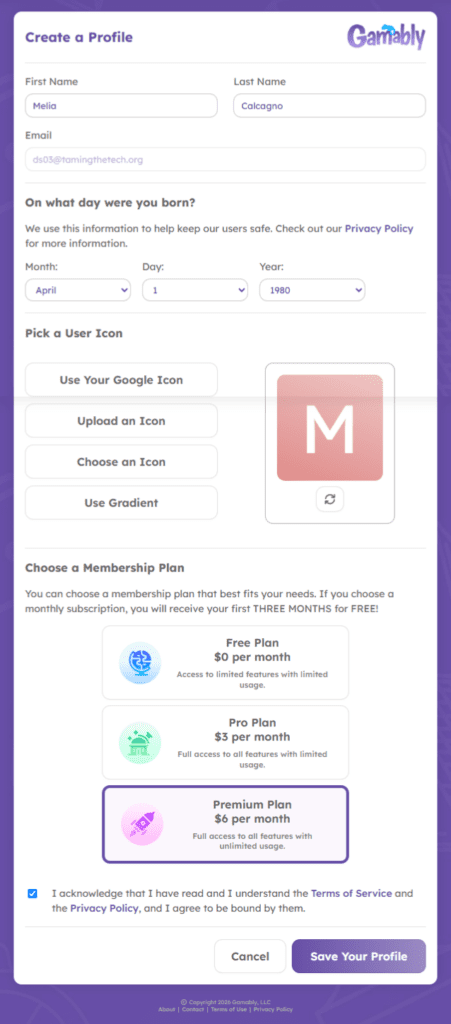
Lastly, acknowledge the Terms of Service and Privacy Policy (after reading them!) then Save Your Profile!
Create a Game

You will land on the Games you Manage page! To create a game you will click the Create a New Game button (pictured above). Then you need to select how to create the game. Continue to use this blog post if you are going to “Start From Scratch.” Otherwise, navigate to these links for if you are going to “Copy An Existing Game” or “Start With a Template.”

At this point, if you are using a free-account, you will be directed to a screen showing that you will be creating a Limited Free Game versus a Full Feature Game. If you are a premium user you will automatically create a Full Feature Game (you can turn off any features you do not want to use later on).
Next, you will start to give your Game an identity. You choose a name, a link for the game, and descriptions for the Game. All of these selections can be edited later on. Then, you’ll decide what theme/s to use, or to upload your own content to create an especially unique experience. You will be able to edit these selections at anytime once your Game is created. The button color will automatically update based on your selections but you can also change it afterwards if you want to. Here’s a Sample Theme.

Next, you choose the way you plan on adding Players. Once your are happy with your selections, confirm your design on the Review Before Finalizing page and then click the Finalize Game button!
Create Elements

Head over to the Manage Elements Button on the left of the Game Management Page (above). Then, start creating your items (store), levels (XP and leaderboard/s), or both (and much more with premium!). You need to name your creation, identify details about it, including its use and availability. All of the choices you are making now can be changed at any point, so do not hesitate with your choices. When you are finished creating Save the element and add more!
Using Gamably: Add Players
When you are ready to add Players to your game head back to the home page and click on Players. On the Players page you will select the Add New Players button. Here you can either upload your spreadsheet of a roster or manually enter student names. Keep privacy concerns minimized by using only first name and last initial, when possible). You will need to print out Player I.D. cards for their initial login. We recommend you have them save the Join Code and password onto their browser or into a doc/note for safekeeping. Students can also join your class if they have a valid email address and use the join code. You can limit who can join using domains or specific email addresses if you are using the join code method!
Using Gamably: Distribution
Log Players in, then they can explore the game you’ve created for them. Give them time to see all the different elements of your game and take a minute to identify classroom goals (Leaderboard status or growth, Specific items from the store, challenges and extension opportunities). Start distributing as Players earn rewards and watch as they engage with work in a different way than you’ve witnessed before. To distribute to Players navigate to the “Distribute Rewards” button on the left menu of the Game Management page. From there, title your reward, choose to distribute either to Players’ individual scores or their team scores, select who is going to be rewarded and then decide what you are rewarding them with. Afterwards, review your distribution to make sure everything looks right and then Distribute!

Gameplay
Monitor student activity on the Game Management page. Continue distributing when Player/s/ or Team/s earn rewards. Don’t be afraid to try new Elements to keep students engaged throughout the year. It also might be fun for you!
Get Started with Gamably: What’s Next
Never stop creating and elevating! Just like we know our students can always get better so can your Gamably Game! Don’t stop thinking of new elements to add to your Gamably game and keep students engaged (subscribe to our newsletter for ideas). The more you enjoy and use Gamably the more your students will engage with it, and work for whatever you incentivize. You should check out our blog for all sorts of ideas and stories about Gamably. Welcome to the family and enjoy your new world of gamification. Gamably on!

View comments
+ Leave a comment